
ShotCaller: Music Video Shot Planner
Web App · Waveform-Accurate Shot ListsShotCaller is a shot designation and creation tool that turns a finished song into a frame-accurate music video shot list. Working from the waveform, you tie every piece of the music to its lyrics, and ShotCaller segments the entire track into shots — then decides the exact millisecond each cut should land so the edit moves with the song.
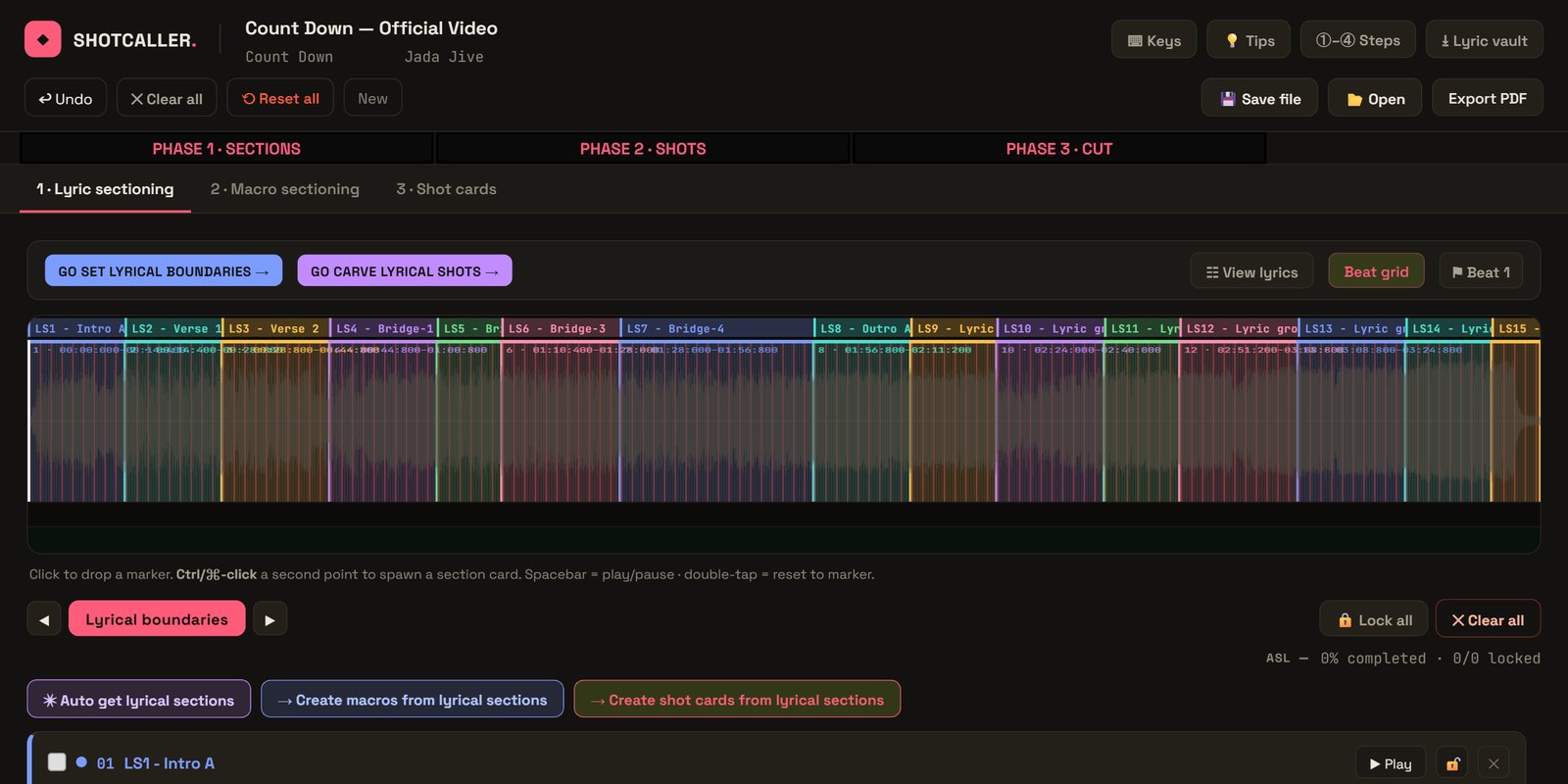
How Phase 1 builds your shot list
Lyrics Tied to the Audio
Load the track and lyrics. ShotCaller draws the waveform and beat grid; you mark each lyric and vocal boundary right on it, and ShotCaller groups them into verses, choruses, and bridges automatically. Automatic lyric alignment is coming soon.
Lip-Sync First, Then Specifics
Lyric, vocal, and lip-sync performance shots are carved first, followed by any other specific shots you want to designate.
Gaps Filled by Average Shot Length
The remaining gaps become B-roll shots, segmented into equal durations based on the average shot length (ASL) of your designated shots — covering the whole song.
L/J Cuts & Beat-Perfect Timing
A final pass checks for L and J cuts and sets the precise millisecond each shot should cut, balancing ASL with cuts that land on the right beat.
A Shot List You Can Use Anywhere
Export the finished plan as a PDF and other shot-list formats to take to set, into your editor, or into any video tool.
Runs in Your Browser
No account required. Your audio and projects stay on your own computer, and you can save project files to reopen later.
Roadmap
Phase 2 · Shot Visuals
An image slot for each shot's first frame, plus a prompt builder that suggests visual intensity, pacing, and camera movement from the song's density, BPM, position in the track, and genre — ready to paste into your preferred video generation tool.
Phase 3 · Cut & Preview
Upload each generated or recorded clip into its slot, trim it to the exact duration, and play it back against its audio — until every shot is filled and the full video plays through.
Phase 4 · Special FX
Effects and transitions applied on top of the finished cut.